

Switch tracks from a game
1
Turn on global hotkeys
Open Settings -> General and turn on the switch in the Global hotkeys card.
2
Use the default shortcuts
- Ctrl+Alt+Space - pause
- Ctrl+Alt+Left or Right arrow - previous or next track
- Ctrl+Alt+Up or Down arrow - volume
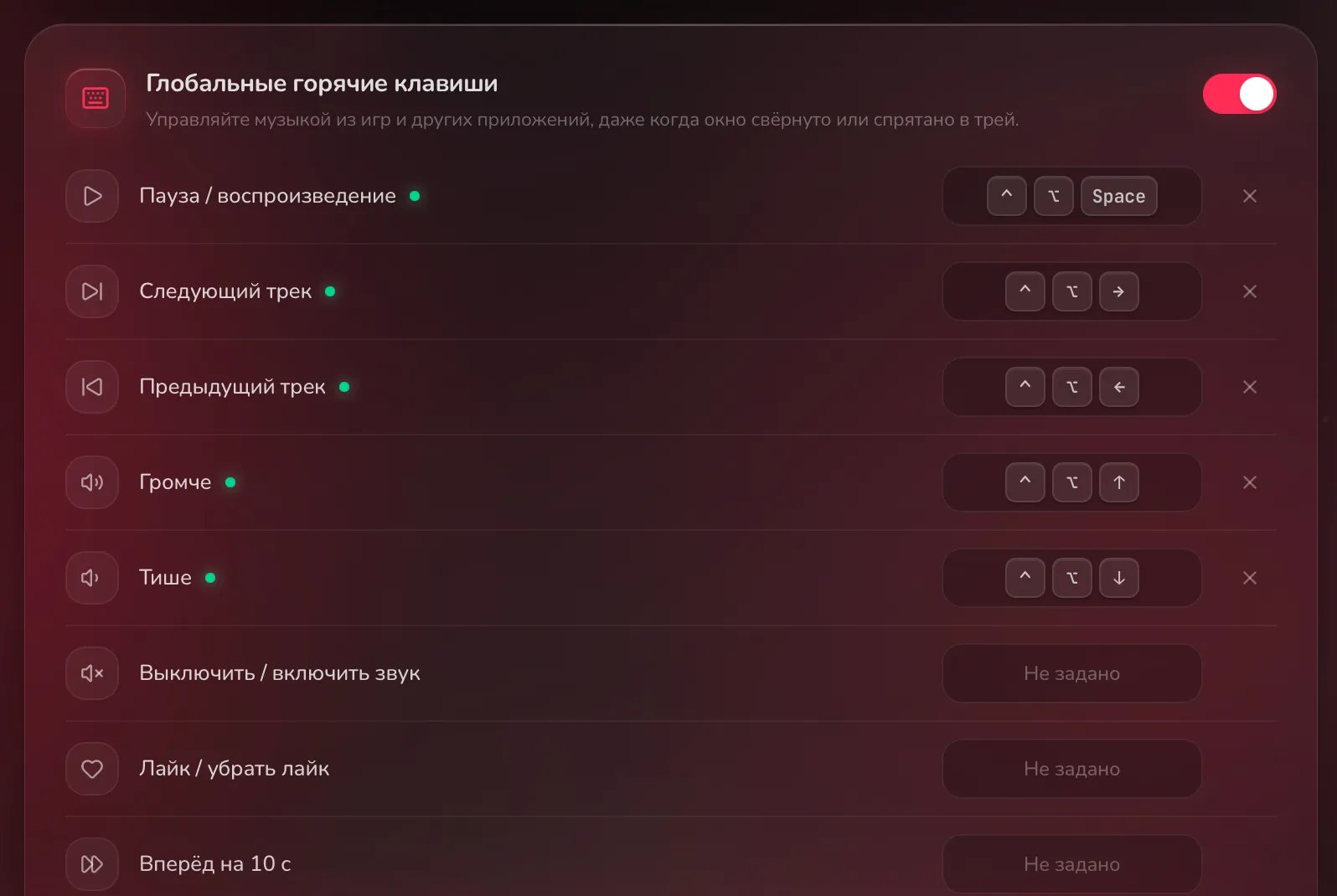
Default shortcuts (this is how they look on macOS)
3
Want your own shortcut: click the row
Click the row of an action, then press the keys. The shortcut needs Ctrl, Alt or Win (Cmd on macOS, Super on Linux). Esc cancels, Backspace clears.Mute / Unmute, Like / Unlike, Forward 10 s and Back 10 s have no shortcut: set your own. Restore defaults brings the default ones back.
Keys in the window
They work with any keyboard layout. On macOS use Cmd instead of Ctrl.
Linux on Wayland: global hotkeys do not work
Linux on Wayland: global hotkeys do not work
Wayland does not let apps catch keys globally. Bind commands instead:
- Turn on the switch in the Global hotkeys card: three commands appear, each with a copy icon.
- In your desktop settings, give each command its own shortcut. You need the
playerctlpackage.
The row says: Taken by the system or another app
The row says: Taken by the system or another app
Pick another combination. In GNOME Ctrl+Alt+arrows may be taken by workspace switching.
Change the keys in the window
Change the keys in the window
You cannot: the keys in the window are fixed. Only the global ones can be changed.