> ## Documentation Index
> Fetch the complete documentation index at: https://docs.soundcloud-desktop.fun/llms.txt
> Use this file to discover all available pages before exploring further.
# Hotkeys and media keys
> Keys in the window, global keys for games, and media keys
## Switch tracks from a game
Open **Settings -> General** and turn on the switch in the **Global hotkeys** card.
* **Ctrl+Alt+Space** - pause
* **Ctrl+Alt+Left or Right arrow** - previous or next track
* **Ctrl+Alt+Up or Down arrow** - volume
On macOS it is **Control+Option** instead of **Ctrl+Alt**.
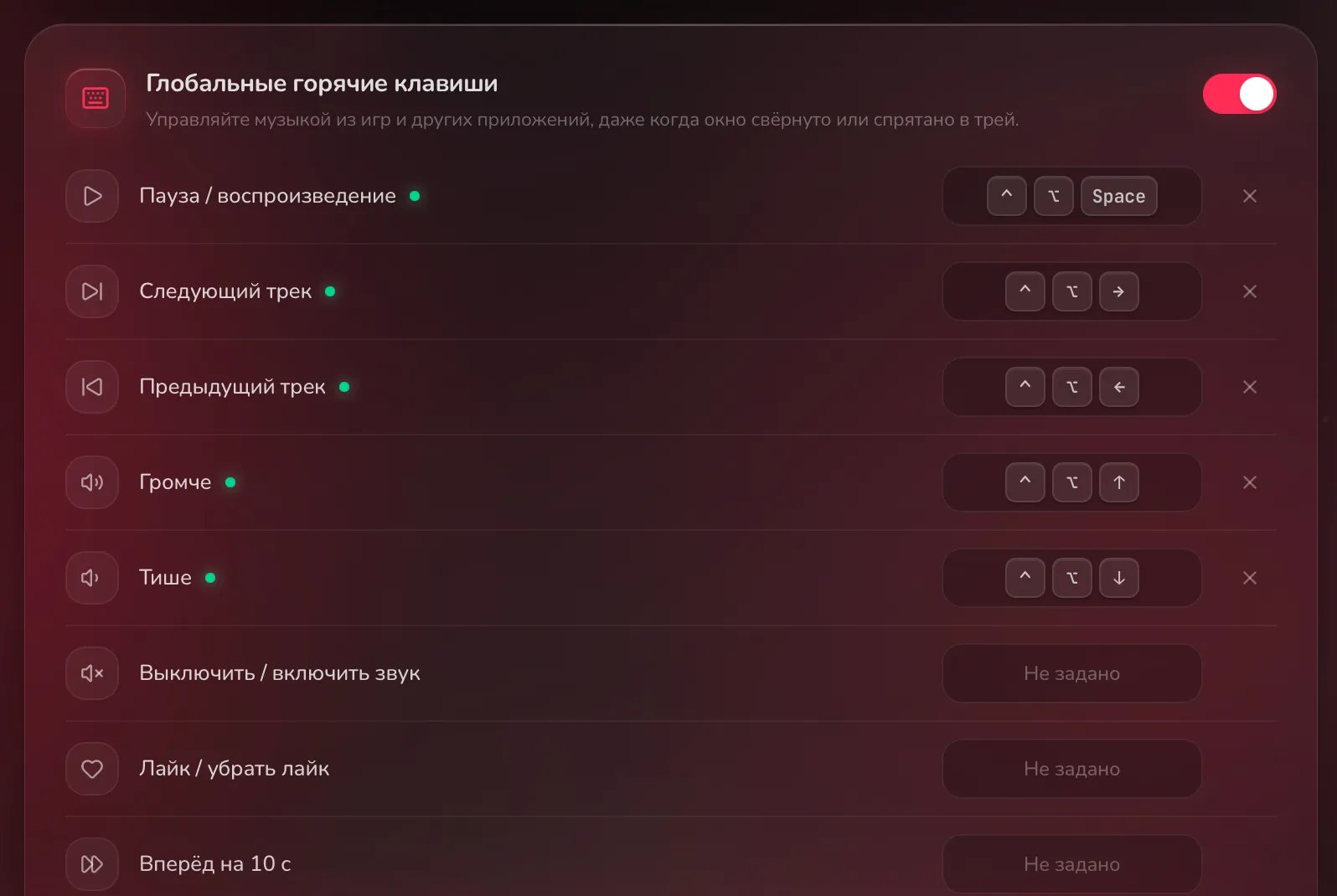 Click the row of an action, then press the keys. The shortcut needs **Ctrl**, **Alt** or **Win** (**Cmd** on macOS, **Super** on Linux). **Esc** cancels, **Backspace** clears.
**Mute / Unmute**, **Like / Unlike**, **Forward 10 s** and **Back 10 s** have no shortcut: set your own. **Restore defaults** brings the default ones back.
Media keys on your keyboard (play, next, previous) work without setup.
## Keys in the window
| Key | What it does |
| - | - |
| **Space** or **K** | pause and resume |
| **Left** / **Right arrow** | seek 5 seconds |
| **N** / **P** | next / previous track |
| **S** | shuffle |
| **R** | repeat |
| **B** | A-B loop |
| **Up** / **Down arrow** | volume |
| **M** | mute |
| **/** or **Ctrl+K** | search |
| **Ctrl+F** | find in a playlist |
| **Q** | queue |
| **L** | lyrics |
| **F11** | fullscreen |
| **Ctrl+/** | the full list of keys |
They work with any keyboard layout. On macOS use **Cmd** instead of **Ctrl**.
Wayland does not let apps catch keys globally. Bind commands instead:
1. Turn on the switch in the **Global hotkeys** card: three commands appear, each with a copy icon.
2. In your desktop settings, give each command its own shortcut. You need the `playerctl` package.
| Action | Command |
| - | - |
| Pause | `playerctl -p soundcloud_desktop play-pause` |
| Next track | `playerctl -p soundcloud_desktop next` |
| Previous track | `playerctl -p soundcloud_desktop previous` |
Pick another combination. In GNOME **Ctrl+Alt+arrows** may be taken by workspace switching.
You cannot: the keys in the window are fixed. Only the global ones can be changed.
## Related topics
- [Is there a feature, and where](/en/use/features.md)
- [Discord status, Last.fm and OBS](/en/use/integrations.md)
- [Download a track or listen offline](/en/use/offline.md)
- [Wave is empty or plays the wrong thing](/en/use/wave.md)
- [Theme, wallpaper and custom CSS](/en/use/appearance.md)
This documentation is built and hosted on [Mintlify](https://mintlify.com), a developer documentation platform.
Click the row of an action, then press the keys. The shortcut needs **Ctrl**, **Alt** or **Win** (**Cmd** on macOS, **Super** on Linux). **Esc** cancels, **Backspace** clears.
**Mute / Unmute**, **Like / Unlike**, **Forward 10 s** and **Back 10 s** have no shortcut: set your own. **Restore defaults** brings the default ones back.
Media keys on your keyboard (play, next, previous) work without setup.
## Keys in the window
| Key | What it does |
| - | - |
| **Space** or **K** | pause and resume |
| **Left** / **Right arrow** | seek 5 seconds |
| **N** / **P** | next / previous track |
| **S** | shuffle |
| **R** | repeat |
| **B** | A-B loop |
| **Up** / **Down arrow** | volume |
| **M** | mute |
| **/** or **Ctrl+K** | search |
| **Ctrl+F** | find in a playlist |
| **Q** | queue |
| **L** | lyrics |
| **F11** | fullscreen |
| **Ctrl+/** | the full list of keys |
They work with any keyboard layout. On macOS use **Cmd** instead of **Ctrl**.
Wayland does not let apps catch keys globally. Bind commands instead:
1. Turn on the switch in the **Global hotkeys** card: three commands appear, each with a copy icon.
2. In your desktop settings, give each command its own shortcut. You need the `playerctl` package.
| Action | Command |
| - | - |
| Pause | `playerctl -p soundcloud_desktop play-pause` |
| Next track | `playerctl -p soundcloud_desktop next` |
| Previous track | `playerctl -p soundcloud_desktop previous` |
Pick another combination. In GNOME **Ctrl+Alt+arrows** may be taken by workspace switching.
You cannot: the keys in the window are fixed. Only the global ones can be changed.
## Related topics
- [Is there a feature, and where](/en/use/features.md)
- [Discord status, Last.fm and OBS](/en/use/integrations.md)
- [Download a track or listen offline](/en/use/offline.md)
- [Wave is empty or plays the wrong thing](/en/use/wave.md)
- [Theme, wallpaper and custom CSS](/en/use/appearance.md)
This documentation is built and hosted on [Mintlify](https://mintlify.com), a developer documentation platform.